Introduction
Many users struggle with GoHighLevel workflows, triggers, and campaigns — and this uncertainty slows down automation success. If you’ve ever stared at the GoHighLevel dashboard wondering whether to build a workflow, set up a trigger, or launch a campaign, you’re not alone.
GoHighLevel is a comprehensive CRM and marketing automation platform designed for agencies and small businesses. It combines contact management, email marketing, SMS, funnel building, and automation into one unified system. However, one of the biggest points of confusion for new and intermediate users is understanding the difference between workflows, triggers, and campaigns.
This article is written for GoHighLevel practitioners with basic knowledge who want to master automation fundamentals. Whether you’re a marketing agency owner, a freelance automation consultant, or a business owner implementing GHL for your company, this guide will clarify exactly what each tool does and when to use it. At Autoesta, we’ve implemented hundreds of GoHighLevel automations, and we’re sharing our tested framework to help you avoid common mistakes and build smarter systems.
What Are GoHighLevel Workflows (and When to Use Them)
Workflows Definition Explained Clearly
GoHighLevel workflows are multi-step automation sequences that execute a series of actions based on predefined logic and conditions. Think of a workflow as a flowchart that guides contacts through different paths depending on their behavior, attributes, or responses.
Unlike simple one-action automations, workflows can include decision points, wait steps, conditional branching, and multiple action types all within a single automation. They’re the most powerful and flexible automation tool in GoHighLevel.
How Workflows Operate
Workflows operate through a visual builder where you drag and drop elements to create your automation logic. Each workflow starts with an entry trigger (how contacts enter the workflow) and then flows through various steps you configure.
The workflow engine processes each step sequentially for each contact. If a contact meets certain conditions, they follow one path; if not, they take another. This branching logic allows you to create sophisticated automations that respond intelligently to contact behavior and data.
Workflows can include actions like sending emails, SMS messages, creating tasks, updating contact fields, adding tags, triggering webhooks, and much more. According to GoHighLevel’s official documentation, workflows support over 30 different action types and filters.
Practical Example of a Workflow
Here’s a real-world GoHighLevel workflows use case: a lead nurture sequence for a real estate agency.
Example workflow GHL structure:
- Entry trigger: Contact submits “Free Home Valuation” form
- Step 1: Send immediate confirmation email
- Step 2: Wait 2 hours
- Step 3: Send SMS with link to book consultation
- Step 4: Wait 24 hours
- Step 5: Check if appointment was booked (conditional split)
- If yes: Send appointment reminder, add “Hot Lead” tag
- If no: Send follow-up email with testimonials, wait 3 days, then send final urgency email
This example demonstrates why workflows excel at multi-step sequences with decision logic. A single workflow handles the entire nurture process while adapting to each lead’s behavior.
Best Use Cases for Workflows
Workflows are the right choice when you need:
- Multi-step sequences: Lead nurturing, onboarding sequences, educational drip campaigns
- Conditional logic: Different paths based on tags, custom fields, or contact responses
- Time-based delays: Waiting periods between actions to avoid overwhelming contacts
- Complex business logic: Checking multiple conditions before taking action
- Cross-channel coordination: Combining email, SMS, tasks, and internal notifications in one automation
Workflows shine when your automation requires intelligence and flexibility. If you find yourself thinking “if this, then that, but also wait before doing this other thing,” you need a workflow.
What Are GoHighLevel Triggers (and When to Use Them)
Triggers Definition in Simple Language
GoHighLevel triggers are event-based automation starters that initiate specific actions immediately when something happens in your system. Think of triggers as “when X happens, do Y instantly” automations.
Triggers are simpler than workflows and typically execute one or a few actions without complex branching logic. They’re reactive by nature — they sit waiting for a specific event and then fire automatically when that event occurs.
Trigger Execution Logic
Triggers operate on an event-driven model. When you set up a trigger, you’re essentially telling GoHighLevel: “Watch for this specific event, and when it happens, execute these actions immediately.”
The key difference in how trigger workflow differ is execution timing and complexity. Triggers fire instantly (or near-instantly) when their condition is met, while workflows can include wait steps and complex decision trees. Triggers are also typically configured as single-action or simple multi-action automations without the visual workflow builder.
In GoHighLevel, triggers can be set on various events including form submissions, tag applications, appointment bookings, pipeline stage changes, inbound calls, and more. According to automation best practices outlined by HubSpot’s automation guide, event-based triggers are most effective for immediate response scenarios.
Real Use Case of a Trigger
Here’s a practical GoHighLevel triggers explained example: instant form submission response.
Scenario: A fitness gym wants to respond immediately when someone fills out their “Free Trial Pass” form.
Trigger setup:
- Event: Contact submits “Free Trial Pass” form
- Action 1: Send SMS within 60 seconds with trial pass details
- Action 2: Notify sales team via internal notification
- Action 3: Add “Trial Interest” tag to contact
This trigger ensures the gym capitalizes on the prospect’s interest while it’s hot. The entire sequence executes in under a minute without any delays or complex logic — perfect for a trigger rather than a workflow.
Best Use Cases for Triggers
Triggers are ideal for:
- Immediate responses: Form submission confirmations, instant lead notifications
- Simple automations: One or two actions without branching logic
- Event-driven actions: Tag added, pipeline moved, appointment booked
- Time-sensitive reactions: Responding while prospect interest is highest
- System integrations: Webhooks firing when specific events occur
Use triggers when speed and simplicity matter more than complex sequencing. They’re your “quick reaction” automation tool that ensures no opportunity slips through the cracks.
What Are GoHighLevel Campaigns (and When to Use Them)
Campaigns Definition
GoHighLevel campaigns are scheduled or triggered message sequences sent to groups of contacts through specific channels like email or SMS. Campaigns focus on message delivery rather than complex automation logic.
Unlike workflows, which can perform many different types of actions, campaigns are specifically designed for communication. They’re purpose-built for sending series of messages to nurture, educate, or convert your audience.
Campaign Types (Email, SMS, etc.)
GoHighLevel supports several campaign types:
Email campaigns: Traditional email marketing sequences with subject lines, HTML content, and tracking. Best for longer-form content, newsletters, and educational sequences.
SMS campaigns: Text message sequences with character limits and high open rates. Ideal for time-sensitive offers, reminders, and urgent communications.
Manual campaigns: Campaigns you trigger manually for one-time sends like announcements or special promotions.
Automated campaigns: Campaign sequences GHL that trigger based on specific events or contact entry into a segment.
Each campaign type serves different communication needs. Email works for detailed content, while SMS excels at immediate attention and higher engagement rates (with typical open rates above 90% according to mobile marketing statistics).
How Campaigns Work in GoHighLevel
Campaigns in GoHighLevel work by selecting a target audience (contact list or segment) and scheduling or triggering message delivery. You create the message content, set timing intervals between messages, and define when contacts should exit the campaign.
When a contact enters a campaign, they receive messages according to your schedule. For example, day 1 might send message A, day 3 sends message B, and day 7 sends message C. Contacts flow through the sequence until they reach the end or meet exit criteria.
Campaigns integrate with GoHighLevel’s contact management, so you can segment audiences based on tags, custom fields, or behavior. You can also track opens, clicks, and replies to measure campaign effectiveness.
Best Use Cases for Campaigns
GoHighLevel campaigns excel in these scenarios:
- Email nurture sequences: Educational content series, newsletter automation
- Promotional sequences: Limited-time offers sent over several days
- SMS reminder series: Appointment reminders, payment reminders
- Re-engagement campaigns: Win-back sequences for inactive contacts
- Announcement series: Product launches, event promotions sent to large lists
Campaigns are your choice when the primary goal is message delivery on a schedule. If you need to send 5 emails over 2 weeks to educate prospects about your service, use a campaign. If you need to take different actions based on whether they opened those emails, use a workflow.
Workflows vs Triggers vs Campaigns — Side-by-Side Comparison
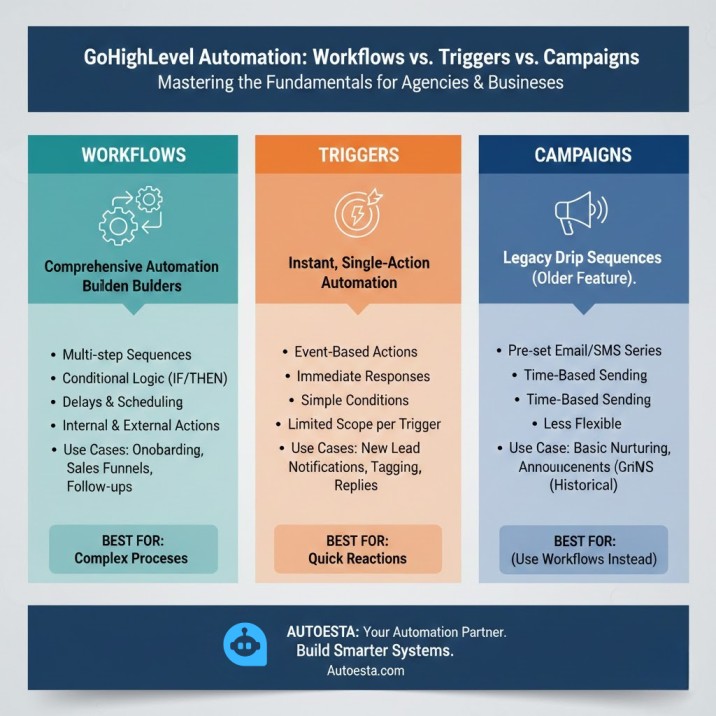
Understanding workflows vs triggers and triggers vs campaigns becomes clearer with direct comparison:
| Feature | Workflows | Triggers | Campaigns |
|---|---|---|---|
| Execution timing | Can include delays, waits, and scheduled actions | Fires immediately when event occurs | Scheduled delivery based on intervals |
| Use cases | Multi-step sequences with branching logic | Immediate reactions to specific events | Message sequences to groups |
| Complexity | High – supports conditional logic, multiple paths | Low to medium – simple action sequences | Low – linear message delivery |
| Best for | Lead nurturing, onboarding, complex automations | Form responses, instant notifications, event reactions | Email series, SMS sequences, broadcasts |
| Action types | 30+ actions including emails, SMS, tasks, webhooks, field updates | Similar actions but limited branching | Primarily email and SMS sending |
| Builder interface | Visual drag-and-drop flowchart | Simple trigger + action configuration | Message creator with schedule |
| Contact flow | Individual contacts move through based on their behavior | Fires for each contact when condition met | Group-based delivery on schedule |
| Conditional logic | Extensive – if/then branches, filters, decision points | Limited – mostly single condition checks | Minimal – basic exit rules |
| Wait/delay capability | Yes – precise control over timing | No – executes immediately | Yes – scheduled intervals between messages |
| Primary goal | Automate complex processes | React immediately to events | Deliver message sequences |
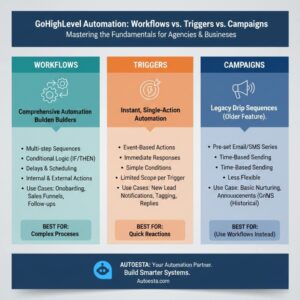
This table shows that each tool serves a distinct purpose in your GoHighLevel automation strategy. They’re not interchangeable — they’re complementary.
How to Choose the Right One for Your Business
Selecting between workflows, triggers, and campaigns requires asking the right questions before you build.
Question 1: Does this automation need multiple steps with decision points?
- If yes → Use a workflow
- If no → Consider a trigger or campaign
Question 2: Must the action happen immediately when an event occurs?
- If yes → Use a trigger
- If no → Use a workflow with wait steps or a scheduled campaign
Question 3: Is this primarily about sending messages on a schedule?
- If yes → Use a campaign
- If no → Use a workflow for multi-action automation
Question 4: Do different contacts need different paths based on their behavior or data?
- If yes → Use a workflow with conditional branches
- If no → A campaign or simple trigger may suffice
Question 5: Are you automating actions beyond just sending messages?
- If yes (tasks, tags, webhooks, field updates) → Use a workflow or trigger
- If no (just emails/SMS) → A campaign is often simpler
Decision Tree Logic
Here’s a practical decision framework:
Start here: What triggered this automation need?
- Specific event just happened (form submitted, tag added, appointment booked)
- Need immediate response? → Trigger
- Need multi-step sequence with delays? → Workflow with that event as entry trigger
- Time-based or scheduled (every Monday, 30 days after sign-up)
- Just sending messages? → Campaign
- Multiple action types or complex logic? → Workflow with date-based trigger
- Ongoing process (lead nurture, client onboarding)
- Needs different paths based on behavior? → Workflow
- Same sequence for everyone? → Campaign
Mistakes to Avoid
Mistake #1: Using triggers for multi-step sequences Many beginners create multiple separate triggers that should actually be one workflow. This creates management headaches and makes it hard to see the full automation logic.
Solution: If you find yourself creating 3+ triggers for the same process, consolidate them into a single workflow.
Mistake #2: Building workflows when campaigns would work Workflows are more complex to build and maintain. If you’re just sending a series of 5 emails with no branching logic, a campaign is simpler and easier to manage.
Solution: Default to campaigns for pure message sequences. Upgrade to workflows when you need conditional logic.
Mistake #3: Expecting triggers to have delays Triggers execute immediately. If you need a 2-day delay before the next action, you need a workflow, not a trigger.
Solution: Use triggers for instant reactions, workflows for timed sequences.
Advanced Tips & Best Practices
Following GoHighLevel automation best practices will save you hours of debugging and improve your automation performance.
Naming Conventions
Establish consistent naming for all your automations:
- Workflows: Use format “WF – [Purpose] – [Trigger]”
- Example: “WF – Lead Nurture – Form Submit”
- Triggers: Use format “TRG – [Event] – [Action]”
- Example: “TRG – Demo Booked – Notify Sales”
- Campaigns: Use format “CMP – [Type] – [Audience]”
- Example: “CMP – Email – New Leads”
This naming system lets you quickly identify automation type and purpose when reviewing your automations library or troubleshooting issues.
Testing Tips
Never launch automations without testing:
Create test contacts: Build a test contact with various tags and custom fields to simulate different scenarios.
Use workflow testing mode: GoHighLevel workflows include a test function that shows you each step’s execution without actually sending messages.
Check timing: For workflows with waits, temporarily reduce wait times during testing (2 minutes instead of 2 days) to verify logic quickly.
Test all branches: If your workflow has 3 conditional paths, create test scenarios for all 3, not just the most common path.
Review logs after testing: Check workflow execution history to confirm steps fired correctly and in the right order.
Debugging and Logging
When automations don’t work as expected:
Check execution history: Every workflow and trigger maintains a log showing when it fired, for which contacts, and which actions were taken.
Review contact timeline: Each contact record shows a timeline of all automation actions they’ve experienced.
Verify trigger conditions: Ensure the triggering event actually occurred and that your filters aren’t too restrictive.
Test individual steps: Isolate problematic steps by temporarily removing other actions and testing just that specific step.
Enable notification emails: Set up admin notifications when workflows complete or fail, so you catch issues immediately.
Failure Fallbacks
Build redundancy into critical automations:
Example: For appointment confirmations, don’t rely solely on an automated email. Also create a task for your team to manually confirm by phone if the contact hasn’t responded within 24 hours.
Use multiple channels: If an email in a workflow includes critical information (like login credentials), also send an SMS with the same info to increase delivery odds.
Set up monitoring: Create a workflow that checks weekly for contacts who should have completed certain automations but didn’t, then notifies your team to follow up manually.
According to enterprise automation standards, critical business processes should never depend on a single automation without human oversight or backup systems.
Common Beginner Mistakes (and How to Fix Them)
Overusing Triggers
The mistake: Creating dozens of individual triggers instead of consolidating related automations into workflows.
Why it happens: Triggers are simpler to set up initially, so beginners create a new trigger for each small action.
The problem: You end up with 20+ triggers that are hard to manage, difficult to see relationships between, and prone to conflicts or duplicate actions.
The fix: Audit your triggers monthly. If you have 3+ triggers that fire on the same or related events, consolidate them into a single workflow. For example, instead of three separate triggers on “form submission” (one sending an email, one adding a tag, one creating a task), build one workflow with all three actions.
Mixing Triggers & Workflows Incorrectly
The mistake: Having a trigger that adds a tag, which then triggers a workflow, which then adds another tag, which triggers another workflow.
Why it happens: Users don’t plan the full automation flow before building, so they add pieces reactively.
The problem: This creates a chain of dependencies that’s nearly impossible to debug. If one piece breaks, the entire sequence fails silently.
The fix: Map your automation on paper first. Draw the full flow from trigger event to final action. Then build it as efficiently as possible — usually as a single workflow rather than chained triggers. Reserve triggers for truly independent actions that don’t depend on previous automations.
Email Flooding
The mistake: Contacts receive 5+ emails in a single day because multiple campaigns and workflows are all sending messages.
Why it happens: Different team members build different automations without coordinating, or workflows and campaigns overlap.
The problem: Email flooding damages deliverability, increases unsubscribes, and annoys your audience.
The fix: Implement communication limits. GoHighLevel allows you to set maximum emails per contact per day. Set this to 2-3 emails maximum. Also create a central automation calendar showing when each workflow and campaign sends messages, so you can identify overlaps before launch.
Not Using Tags Strategically
The mistake: Using workflows to send messages without tagging contacts to track their progress.
Why it happens: Beginners focus only on the immediate action (sending the email) without thinking about tracking or future segmentation.
The problem: You can’t see which contacts completed which sequences, making reporting and follow-up difficult.
The fix: Add tag actions to every significant workflow step. Examples: “WF Lead Nurture – Email 1 Sent”, “WF Onboarding – Completed”. These tags create a detailed history you can use for reporting and triggering future automations.
Ignoring Mobile Optimization
The mistake: Writing email campaigns with long paragraphs and complex formatting that breaks on mobile devices.
Why it happens: Users preview emails on desktop only.
The problem: Over 60% of emails are opened on mobile devices. If your message isn’t mobile-optimized, most recipients won’t read it.
The fix: Always send test emails to your own phone before launching campaigns. Keep paragraphs to 2-3 sentences, use single-column layouts, and ensure buttons are large enough to tap easily.
Conclusion — What to Use and When
Here’s your quick reference guide for choosing the right automation tool:
Use triggers for immediate reactions: When a specific event happens and you need instant action with minimal complexity, triggers are your tool. Perfect for form submission confirmations, instant lead notifications, and event-driven webhooks.
Use workflows for multi-step logic: When you need sequences with delays, conditional branching, and complex decision points, workflows provide the power and flexibility you need. They’re ideal for lead nurturing, client onboarding, and any process requiring intelligence.
Use campaigns for message sequences: When your goal is delivering a series of emails or SMS messages on a schedule to a group, campaigns offer the simplest setup and management. They excel at newsletters, promotional sequences, and educational content delivery.
The most effective GoHighLevel implementations use all three tools working together. A trigger might instantly acknowledge a form submission, add the contact to a workflow for personalized nurturing based on their interests, and also subscribe them to a weekly email campaign for industry news.
Start simple with triggers and campaigns for your basic needs, then graduate to workflows as your automation requirements become more sophisticated. Document your automations, test thoroughly, and review performance monthly to continuously improve your systems.
At Autoesta, we’ve seen businesses transform their efficiency by mastering these three automation tools. The key is understanding that they’re complementary, not competing options — each serves its specific purpose in building a complete marketing automation system.
Author Bio
Author: Alpit Patel
Alpit Patel is an experienced automation specialist at Autoesta helping businesses implement GoHighLevel and other enterprise automation systems to streamline operations and increase revenue. With hands-on experience designing scalable workflows, triggers, and campaigns, Alpit writes to help businesses avoid common automation pitfalls. Connect with him on LinkedIn: https://www.linkedin.com/in/alpit-patel-175749310/
Need Help Building Your GoHighLevel Automations?
If you’re still uncertain about which automation approach fits your business needs, or if you want expert guidance to build high-performing workflows, triggers, and campaigns that actually convert, the Autoesta team is here to help. We’ve implemented proven automation systems for hundreds of businesses and can design a custom strategy tailored to your specific goals. Book a free consultation call with our automation specialists to discuss your challenges and discover how we can streamline your marketing operations, eliminate manual tasks, and increase your revenue through intelligent automation. Schedule your strategy session today and let’s build automations that work while you sleep.
Frequently Asked Questions
Q1: What is the main difference between GoHighLevel workflows and triggers?
A: Workflows are multi-step automation sequences with delays, conditional branching, and complex logic, while triggers are immediate, event-driven automations that execute simple actions instantly when specific events occur. Workflows are best for nurturing sequences; triggers are best for instant reactions.
Q2: Can I use campaigns instead of workflows in GoHighLevel?
A: Campaigns work well for simple message sequences sent on a schedule to groups of contacts. However, if you need conditional logic, different paths based on contact behavior, or actions beyond just sending messages (like creating tasks or updating fields), you’ll need a workflow instead.
Q3: How do I know when to use a trigger versus a workflow?
A: Use a trigger when you need an immediate response to a single event with 1-3 simple actions. Use a workflow when you need time delays, multiple decision points, or different paths based on contact data or behavior. If you’re thinking “wait 2 days then check if they did X,” you need a workflow.
Q4: What are the best use cases for GoHighLevel workflows?
A: Workflows excel at lead nurturing sequences, client onboarding processes, abandoned cart recovery, appointment reminder sequences with conditional logic, post-purchase follow-ups with satisfaction checks, and any automation requiring different paths based on contact responses or behavior.
Q5: Can triggers and workflows work together in GoHighLevel?
A: Yes, they work together seamlessly. A common pattern is using a trigger for immediate acknowledgment (like sending a form confirmation SMS instantly), while simultaneously adding the contact to a workflow for longer-term nurturing with delays and conditional steps.
Q6: What’s the maximum number of emails I should send in a workflow or campaign?
A: Best practice is limiting contacts to 2-3 emails per day across all automations to avoid overwhelming recipients and damaging deliverability. Use GoHighLevel’s communication limits feature and create an automation calendar to track when different workflows and campaigns send messages to prevent overlap.
Q7: How do I test workflows before launching them in GoHighLevel?
A: Create dedicated test contacts with various tags and custom fields, use GoHighLevel’s built-in workflow testing mode to preview execution without sending real messages, temporarily reduce wait times during testing (2 minutes instead of 2 days), test all conditional branches, and review execution logs to confirm proper firing.
Q8: What are common mistakes to avoid when setting up GoHighLevel automations?
A: The most common mistakes include creating too many individual triggers instead of consolidating into workflows, chaining multiple triggers together creating debugging nightmares, flooding contacts with multiple emails per day, building workflows when simpler campaigns would work, and not using tags to track contact progress through sequences.